Field Service Kanban Board for Job Workflow

See every job's status. Drag to update. Never miss an SLA.

Field Ascend's Kanban board gives dispatchers and managers a visual workflow view of every job — organised by status, updated in real time, with live SLA countdowns and inline scheduling. No more hunting through spreadsheets to find what's stuck.

Built for UK field service teams who need to see the full picture at a glance — from unassigned work to completed jobs — and act on bottlenecks before they become problems.

30-day free trial · Kanban board included on all plans

Key Takeaways — Field Service Kanban Board

Three Views of Your Work

Different decisions need different views. Field Ascend gives you three complementary ways to manage jobs — use whichever fits the moment, or switch between them with one click.

Why Teams Use the Kanban Board

The Kanban Board in Detail

Your job statuses become columns. Your jobs become cards. Drag a card to a new column and the status updates everywhere — the jobs table, the planner, the mobile app, and any connected integrations.

Drag-and-Drop Status Management

Each column on the board maps to one of your custom job statuses. You define the statuses — reactive, PPM in progress, awaiting parts, on hold, completed — and the board builds itself automatically.

  • Custom columns — driven by your tenant's job statuses, not a fixed template
  • Column picker — show or hide columns and save your preferences per user
  • Drag to update — move a card and the status change fires immediately, with push notifications to the assigned engineer's app
  • Job count badges — see how many jobs sit in each status at a glance

When you drag a card, the same notification and email logic runs as a manual status change in the jobs table — engineers get alerted, audit trails update, and nothing falls through the cracks.
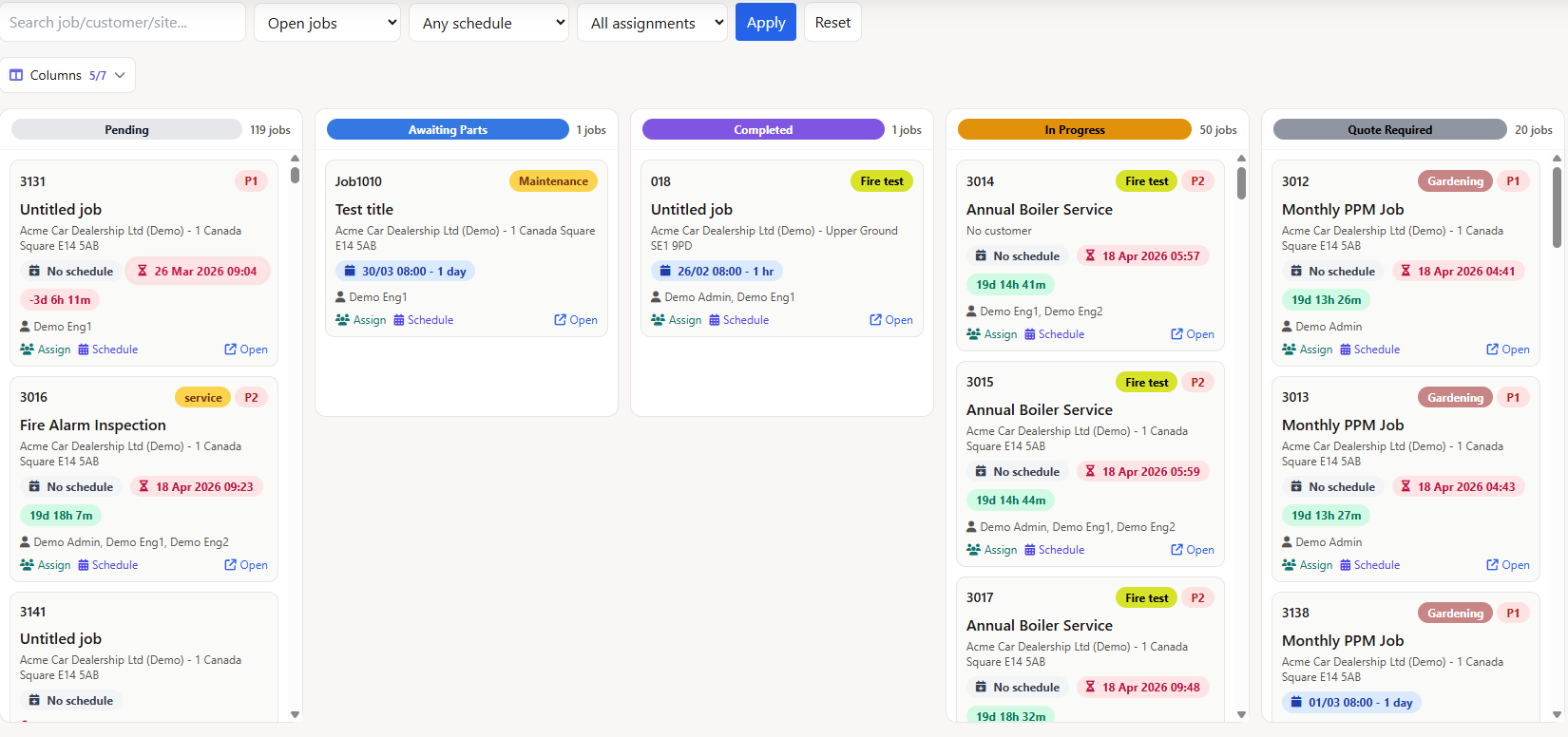
Field service Kanban board with drag-and-drop job status columns, card count badges, and column picker

Live SLA Countdown on Every Card

Every job card shows a real-time countdown to its target completion date. The timer updates every minute without a page reload — green when on track, amber when under four hours remain, and flashing red when overdue.

  • Colour-coded urgency — green, amber, and red thresholds make overdue jobs impossible to miss
  • Flashing overdue indicator — jobs past their SLA pulse with a red animation that catches the eye
  • Completed jobs excluded — finished work doesn't clutter the countdown view
  • Same logic as the jobs table — consistent SLA calculation across the Kanban board and the tabular jobs list

For field service teams managing contract SLAs — whether that's four-hour response times for lift callouts or 24-hour targets for HVAC reactive work — this is the fastest way to see what's at risk.
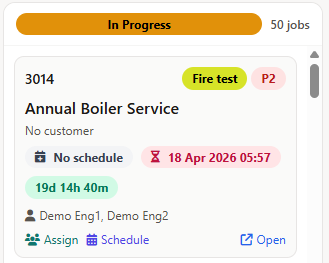
Kanban board job cards showing live SLA countdown timers in green, amber, and flashing red overdue states

Schedule Jobs Without Leaving the Board

Click the schedule badge on any card and an inline calendar modal opens — the same schedule builder used on the full job detail page. Pick dates, set start and end times, assign engineers, and save. The card updates instantly with a summary like 28/03 08:00 — 2 hrs or 01/04 09:00 — 2.5 days.

  • Multi-day scheduling — select date ranges for jobs that span multiple days
  • Engineer availability — see who's busy, who's free, and which bank holidays apply
  • Multi-engineer support — assign secondary engineers (mates) to the same schedule slot
  • Duration summary — cards show total scheduled time in hours or days, calculated automatically

This works alongside the visual planner board — schedule from whichever view suits the task. Changes sync instantly across both.
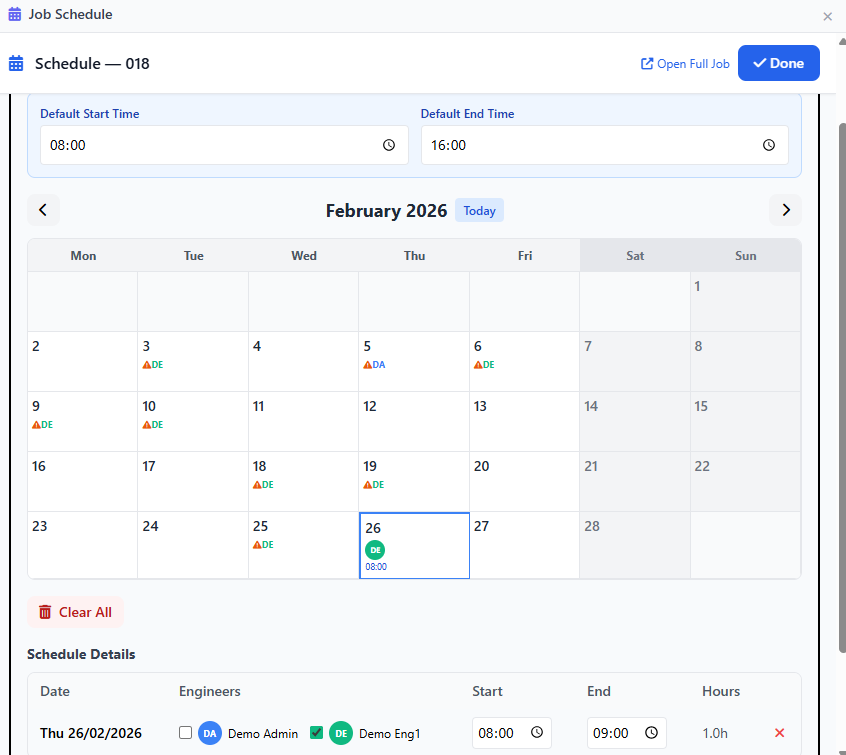
Inline schedule calendar modal on Kanban board showing date selection, start and end times, and engineer assignment

Assign Engineers Directly from the Board

Each card shows the assigned engineer. Need to reassign? Click the engineer badge to open an assignment panel — add or remove secondary engineers, change the primary, and the notification goes straight to their mobile app and email (if enabled).

  • Primary and secondary engineers — assign mates for two-person jobs without opening the full job page
  • Push and email notifications — engineers are notified instantly when assigned, exactly the same as assigning from the job detail page
  • Pop-out to full detail — click the job number to open the complete job page in a new tab for deeper editing

The assignment logic is the same as the jobs table and job detail page — permission checks, notification rules, and audit logging all apply.
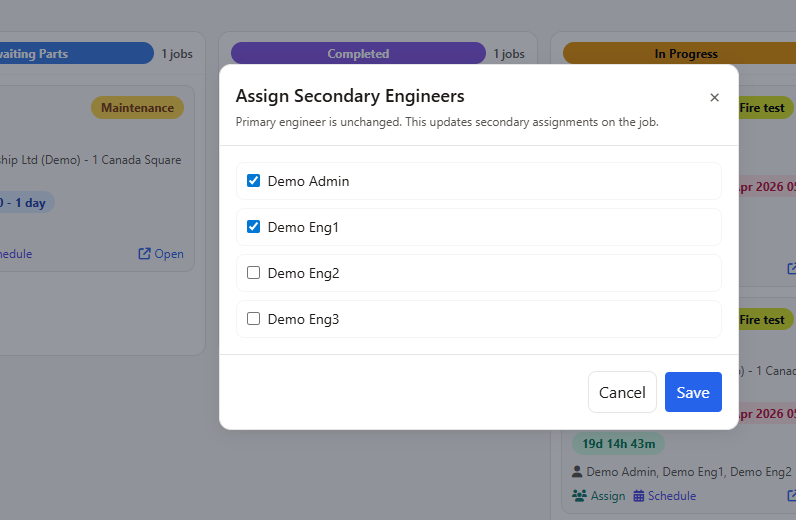
Kanban board engineer assignment panel showing primary and secondary engineer selection with push notification

Why a Kanban Board for Field Service?

Traditional field service software gives you a list of jobs. A Kanban board gives you a workflow — showing not just what exists, but where every job sits in its lifecycle and what's blocking progress.

Spot Bottlenecks Before They Escalate

When 15 jobs pile up in "Awaiting Parts" and only 3 are "In Progress," you know where the blockage is. The Kanban layout makes volume imbalances visible at a glance — no reporting needed.

Manage SLAs Proactively

Flashing red countdowns on overdue cards force attention. Instead of discovering a missed SLA in a weekly report, you catch it in the moment and reassign or escalate immediately. Read more about our full FSM platform.

Reduce Context Switching

Schedule, assign, and update status from the same screen. No jumping between a planner, a jobs list, and a job detail page. Everything you need for workflow triage lives on one board.

Works for Reactive and Planned Work

Emergency callouts, PPM visits, and project work all flow through the same board. Job type and priority badges on each card let you distinguish reactive from planned without filtering.

Team Awareness Without Meetings

With auto-refresh every 60 seconds, the board acts as a live operations dashboard. Mount it on a wall screen in the office and the whole team sees the state of play — no standup meeting required.

Complements the Planner and Table

The Kanban board doesn't replace the visual planner or the jobs table — it adds a third lens. Use the planner for time-based scheduling, the table for data-heavy analysis, and the Kanban for status-based workflow.

Part of a Complete Field Service Platform

The Kanban board isn't a standalone tool — it's woven into the same platform that handles scheduling, quoting, PPM, compliance, and invoicing. One login, one system, zero double-entry.

Frequently Asked Questions

What is a field service Kanban board?

A field service Kanban board is a visual workflow tool that organises jobs into columns by status — such as Unassigned, Scheduled, In Progress, On Hold, and Completed. Each job appears as a card that you drag between columns as work progresses, giving dispatchers and managers an instant overview of every job's current state.

Can I customise the status columns on the Kanban board?

Yes. Field Ascend's Kanban board columns are driven by your tenant's custom job statuses. You define the statuses that match your workflow — reactive, PPM, awaiting parts, on hold, completed — and the board automatically creates a column for each one. You can also filter which columns are visible using the column picker.

Does the Kanban board update in real time?

Yes. The board auto-refreshes every 60 seconds so you always see the latest job statuses, engineer assignments, and SLA countdowns without manually reloading the page. The refresh pauses during active interactions like dragging a card or editing a schedule.

Can I schedule jobs directly from the Kanban board?

Yes. Click any job card's schedule badge to open an inline calendar modal. You can pick dates, set start and end times, assign engineers, and save — all without leaving the board. The card updates instantly with the new schedule summary. This uses the same scheduling engine as the visual planner.

How does SLA tracking work on the Kanban board?

Every job card displays a live SLA countdown showing time remaining until the target completion date. The countdown updates every minute and changes colour — green for on track, amber when under four hours remain, and red with a flashing indicator when overdue. This makes it impossible to miss an SLA breach.

Is the Kanban board included in the Field Ascend price?

Yes. The Kanban board is included at no extra cost on all Field Ascend plans, alongside the jobs table view, visual planner, and every other feature. There are no add-on charges or premium tiers. See pricing for details.

Ready to See Your Jobs on a Kanban Board?

Start your free trial today. Full access to the Kanban board, visual planner, jobs table, mobile app, and every other feature.

Start Free Trial